Inbox
Read and reply to every campaign reply in one place, reclassify leads, and search or filter across senders and campaigns.
The Inbox brings every reply across every campaign and sender into one place — a unified view for reading, replying, and reclassifying.
Finding a conversation
The Inbox is split into a list on the left and the full conversation on the right. The list can be filtered by Campaign, Reply Type, Sender, and a date range, and grouped into All, Unread, Read, or Archived.
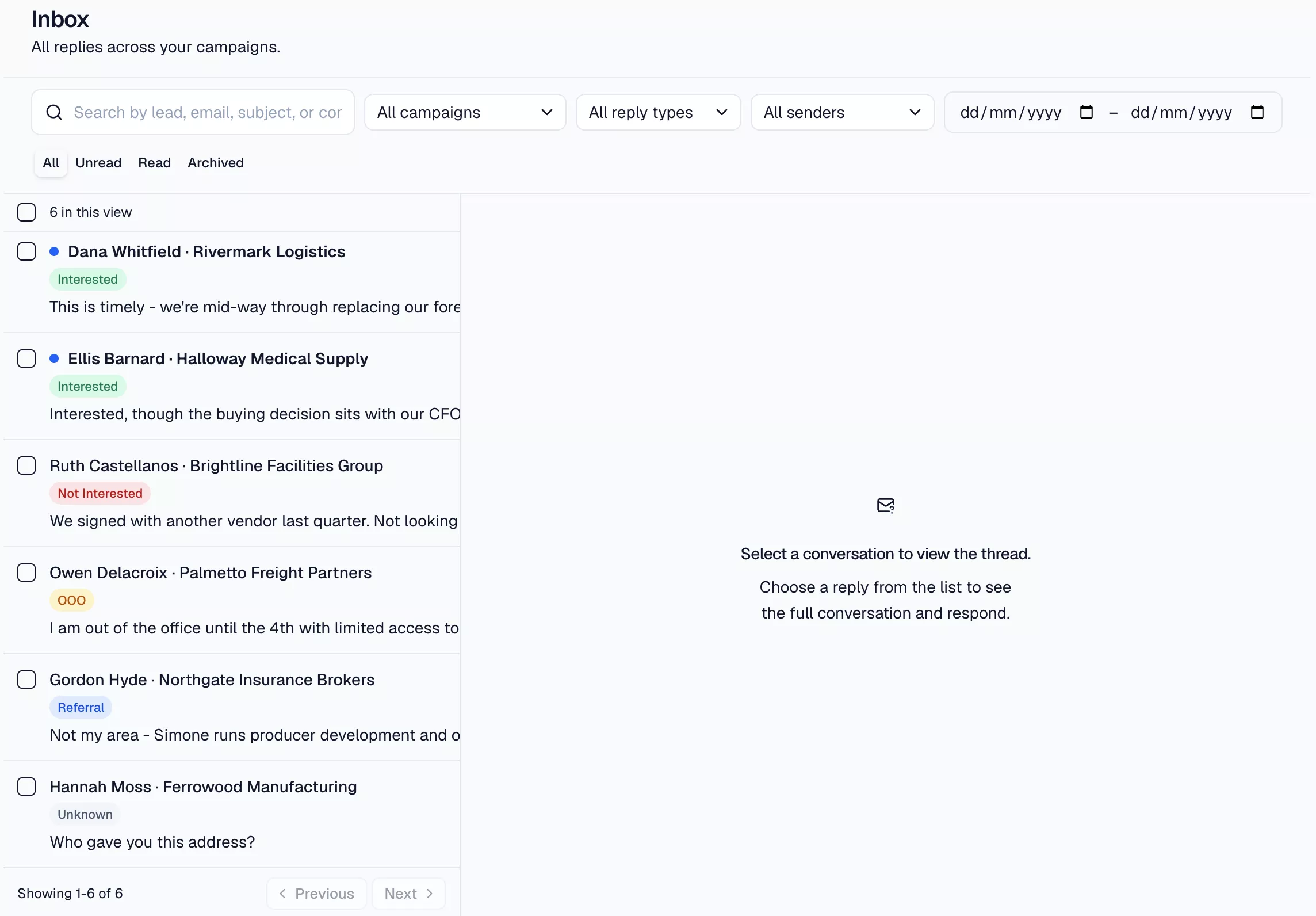
Search matches the lead's name, their company, their email address, the subject line, and the text of the reply itself — so you can find a thread by any of them.
Select any thread's checkbox to reveal a bulk action bar for marking multiple threads Read/Unread or Archive/Unarchive at once. A single thread has the same actions in its own header, plus Mark as Read/Mark as Unread.
How replies get classified
Every incoming reply is automatically classified as Interested, Not Interested, OOO, Referral, or Unknown using AI — no action needed on your part. For an OOO reply, the AI also looks for a return date mentioned in the message: if it finds one, the lead's campaign enrollment pauses until that date; if it can't, the enrollment pauses for 7 days instead.
Reclassifying a reply
Each thread carries a reply-type badge showing its current classification, which you can change from a dropdown in the thread header.
Reclassifying to OOO manually always pauses the enrollment for a flat 7 days — the return-date lookup above only runs on the automatic classification, not a manual correction. Reclassifying away from OOO resumes the enrollment immediately. The other three reply types just relabel the thread, with no effect on enrollment.
Replying, replying all, or forwarding
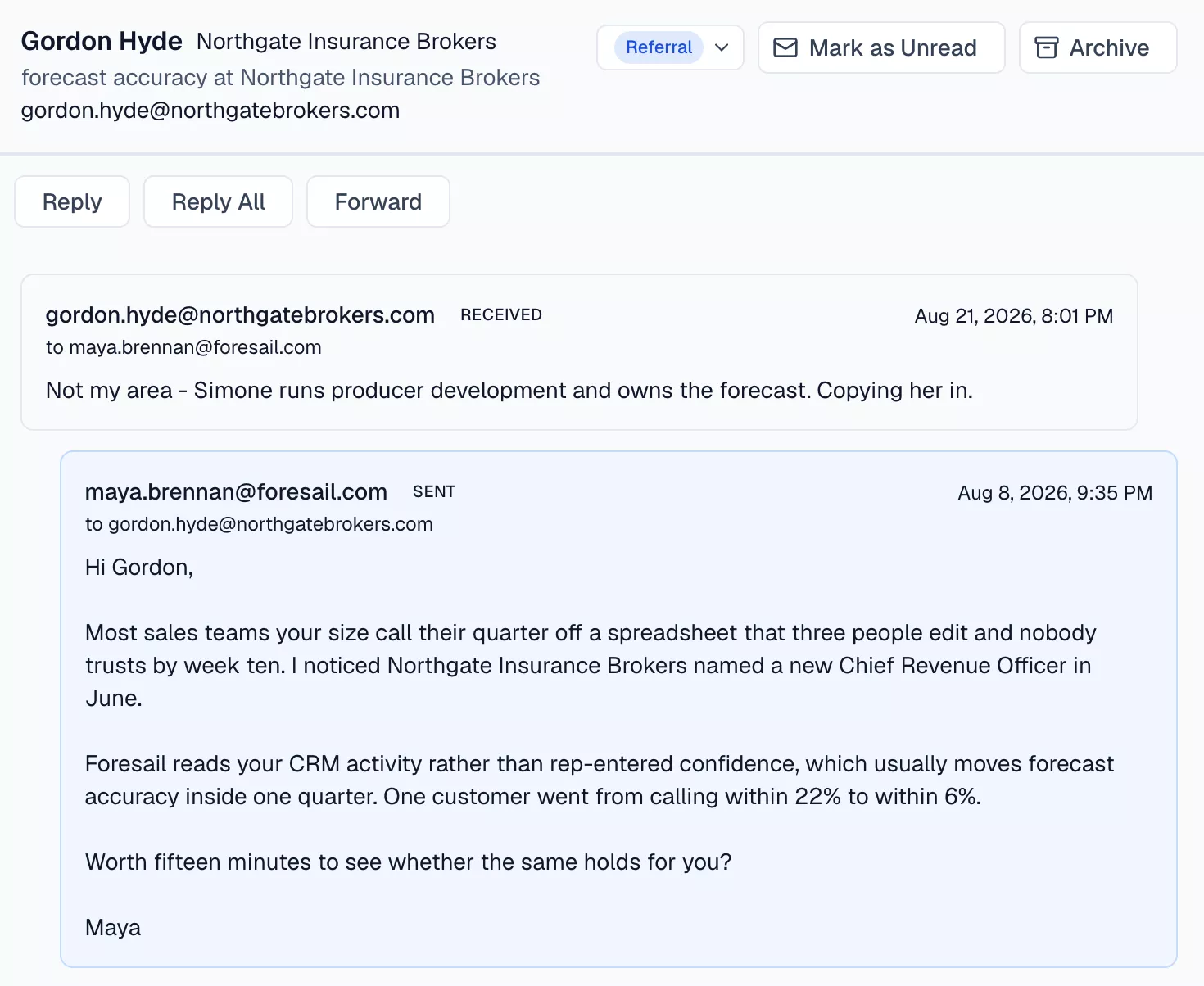
An open thread shows the reply above the campaign email it answers, so you can see what the lead was responding to before you write back.
Choose an action
From an open thread, click Reply, Reply All, or Forward to open the compose box.
Check the recipients
Reply addresses the original sender. Reply All fills in the original sender plus everyone who was on the original message, in both To and Cc. Forward starts with an empty To field and quotes the original message underneath, prefixed "Fwd:".
Cc and Bcc fields are hidden until you click their links, and auto-reveal on Reply All if the original message already had a Cc.
Attach files (optional)
Click Attach files to add attachments — up to 10 MB per file, 5 files, and 25 MB combined. Each file appears as a chip reading "uploading…" while it transfers, then its file size once it's done. Remove one with the ✕ on its chip.
Send stays disabled while any attachment is still uploading, and also while one has failed — remove the failed file from its chip to re-enable it.
Write and send
The subject is pre-filled ("Re: ..." or "Fwd: ..."); write your message and click Send.
Anything you attached stays visible on that message in the thread afterwards, with its file size — click it to download.
Related docs
- Leads — enrollment status and how an OOO pause interacts with it.
- Campaigns
- Getting Started